キューのノート
| grandMA3 ユーザマニュアル » ノート » キューのノート | Version 2.4 |
以下の例は、キューにノートを追加する方法を示しています。
ノートを用いると、例えば、次キューをトリガーするステージ上の主要なアクションについてオペレータに知らせたりできます。詳しくは キューとシーケンス を参照してください。
Notes は Info ウィンドウでも表示・編集できます。Info ウィンドウ を参照してください。
- 必要条件: grandMA3 デモショーが読み込まれている。
キューに注記を追加するには、以下のようにします。
- Add Window メニューを開き、Common をタップしてから、Sequence Sheet をタップします。
- Sequence Sheet 上部の Link Type を長押しし、ドロップダウンメニューから Selected をタップします。
- Sequence Pool ウィンドウを開き (Add Window を参照)、シーケンス1の "Look" をタップします。これでシーケンス1が選択されます。または、コマンドラインに次のように入力します。
または
User name[Fixture]>Select Sequence "Look"
User name[Fixture]>Select Sequence 1 - Edit を押してから、キュー内の Note セルをタップします。Text Input Editor が開きます。Note の入力が完了したら、画面キーボードの Save または Please をタップするか、Please を押してください。
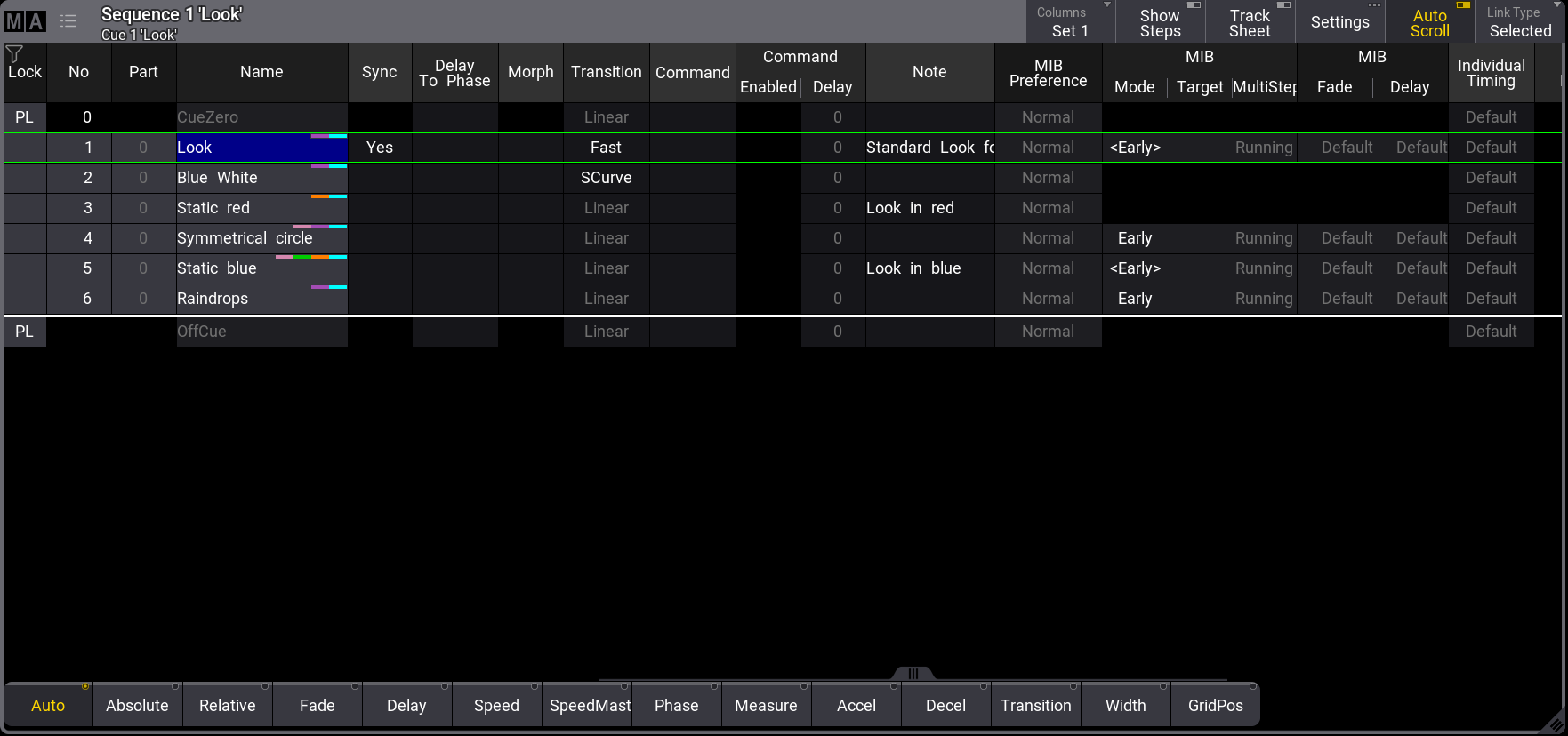
Multi-Line Editor
ノートの Text Input Editor では複数行の入力が可能です。Shift + Please と押すことで行を追加できます。詳しくは プール・オブジェクトのノート - Text Input Editor を参照してください。
Line Height の変更
行の高さを手動で変更するには、以下のようにします。
- Sequence Sheet の左上隅にある MA をタップすると、Sequence Sheet Settings が開きます。
- Mask タブをタップします。
- Line Height をタップします。Sequence Sheet の行の高さが変わります。

|
ヒント |
| Line Height が Auto に設定されている場合、行は行数に基づいて高さを調整します。Sequence Sheet の設定については、Sequence Sheet を参照してください。 |
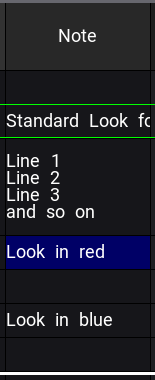
Show Notes
この例では、grandMA3 デモショーを読み込みます。
Sequence Sheet または Content Sheet で注記を表示する別の方法は、Show Notes タブを使用することです。Show Notes は専用のウィンドウ設定で有効/無効を切り替えられます。詳しくは ウィンドウの設定 を参照してください。
Sequence Sheet で Show Notes を有効にするには、以下のようにします。
- Sequence Sheet のMAロゴをタップすると、Sequence Sheet Settings が開きます。
- Mask タブをタップしてから、Show Notes を有効にしてウィンドウを閉じます。
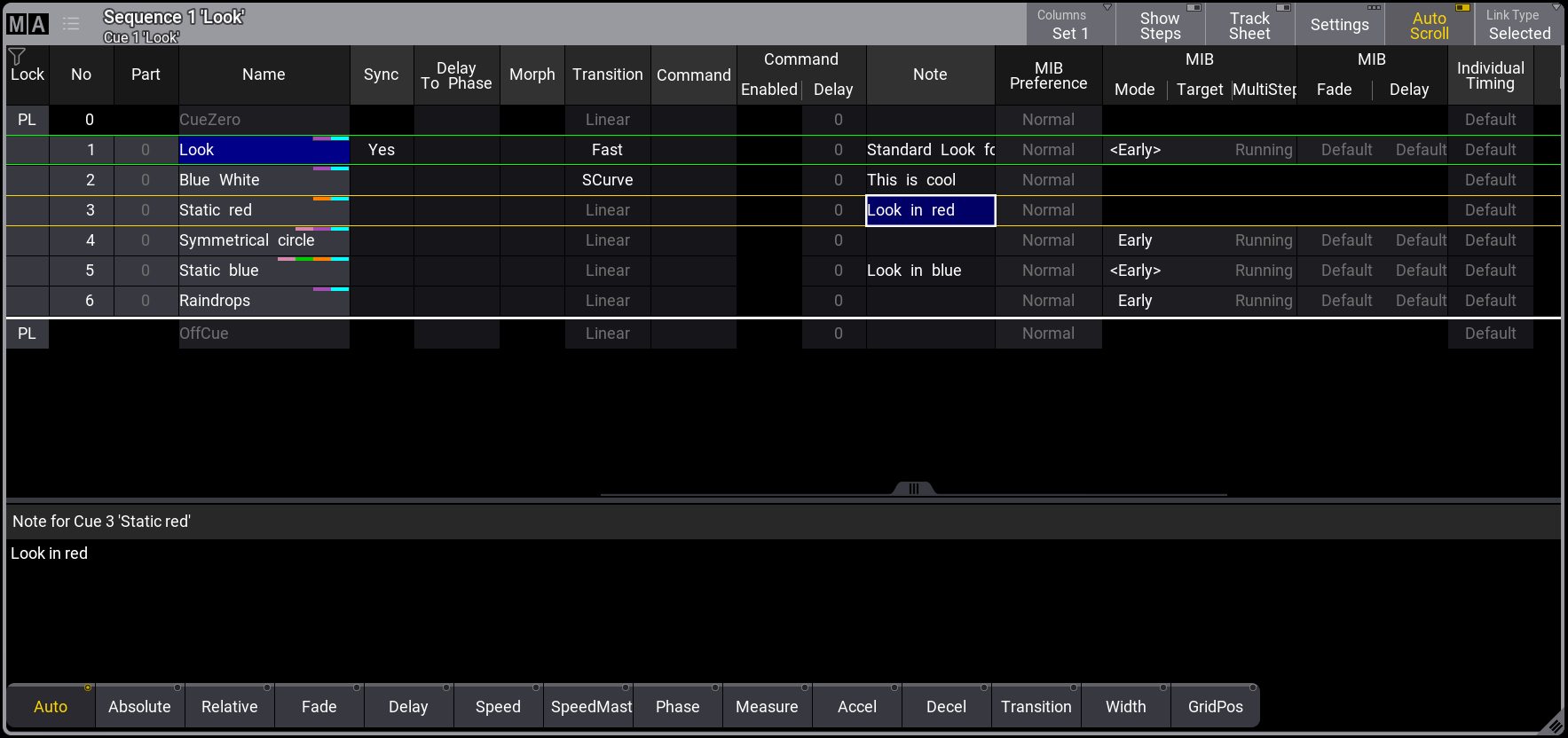
- 現在選択されているキューの注記を含むテキスト欄が、以下のように Sequence Sheet に追加されます。
|
|
ヒント |
| Show Notes が有効な場合、Show Recipes は無効になります。 |
Show Notes の重要な機能:
- テキスト欄は、例えば現在アクティブまたは選択されているキューの注記を表示するために使用できます。
- テキスト欄では、注記をライブ編集できます。
- テキスト欄には、現在選択されている注記情報が表示されます。上の画面例では、"Note for Cue 1: Look" と表示。