プレビュー
| grandMA3 ユーザマニュアル » プレビュー | Version 2.4 |
プレビュー・モードでは、オペレータはライブ出力に影響を与えずにオブジェクトを表示できます。プレビューが有効なとき、プログラマの内容は実際の出力から分離されます。例えば、オペレータは出力を変えずにプレビューでシーケンスを進めることができます。

|
重要 |
| 同じユーザプロファイルを共有するすべてのユーザでプレビューが有効になります。複数ユーザのセッションで、あるユーザがプレビュー環境で作業し、別のユーザがライブ環境に留まるには、別々のユーザプロファイルが必要です。 |
シーケンスまたはキューをプレビューするには、以下のようにします。
- Prvw を押して、Sequence プール・オブジェクトをタップします。
- Prvw Sequ 1 Cue 5 Please と押します。
プレビュー環境に他のオブジェクトが読み込まれている場合、それらは削除されます。

|
ヒント |
| 実行中のシーケンスをプレビューすると、実行中のキューからプレビュー再生が開始されます。 |
プレビューが有効になると、プレビュー環境にオブジェクトを追加/削除できます。
これを行うには、以下のようにします。
- オブジェクトを追加/削除するには、Prvw を押したまま Sequence プール・オブジェクトをタップします。
- キーでオブジェクトを削除するには、Prvw Off Sequ 2 Please を押します。
プール・オブジェクト内でオレンジ色に点滅する双眼鏡 ( ) は、主プレビュー・オブジェクトを示します。これは、プレビューで選択されているオブジェクトです。
白に点滅する双眼鏡 ( ) は、選択されていないものの、プレビュー環境に読み込まれているオブジェクトを示します。
複数のオブジェクトがプレビュー環境に追加されている場合、デフォルトでは最後に追加されたオブジェクトが主プレビュー・オブジェクトになります。
プレビューでオブジェクトを保存/更新すると、その内容はライブ環境に直接保存/更新されます。
|
|
重要 |
| プレビューでシーケンスやキューを保存/更新すると、ライブ出力に影響する場合があります。例えば、トラッキングが有効な状態で実行中のキューや前のキューを更新した場合です。 |
プレビュー環境とライブ環境を切り替えるには、Prvw を2回押します。プレビューを終了するには、Prvw + Off を押すこともできます。
プレビューに入ると、プレビュー環境は前回の状態で開きます。
|
|
ヒント |
| 初めてプレビュー・モードに入るときは、プレビューするシーケンスまたはキューを選択する必要があります。そうしないと、プレビュー環境は空のままです。 |
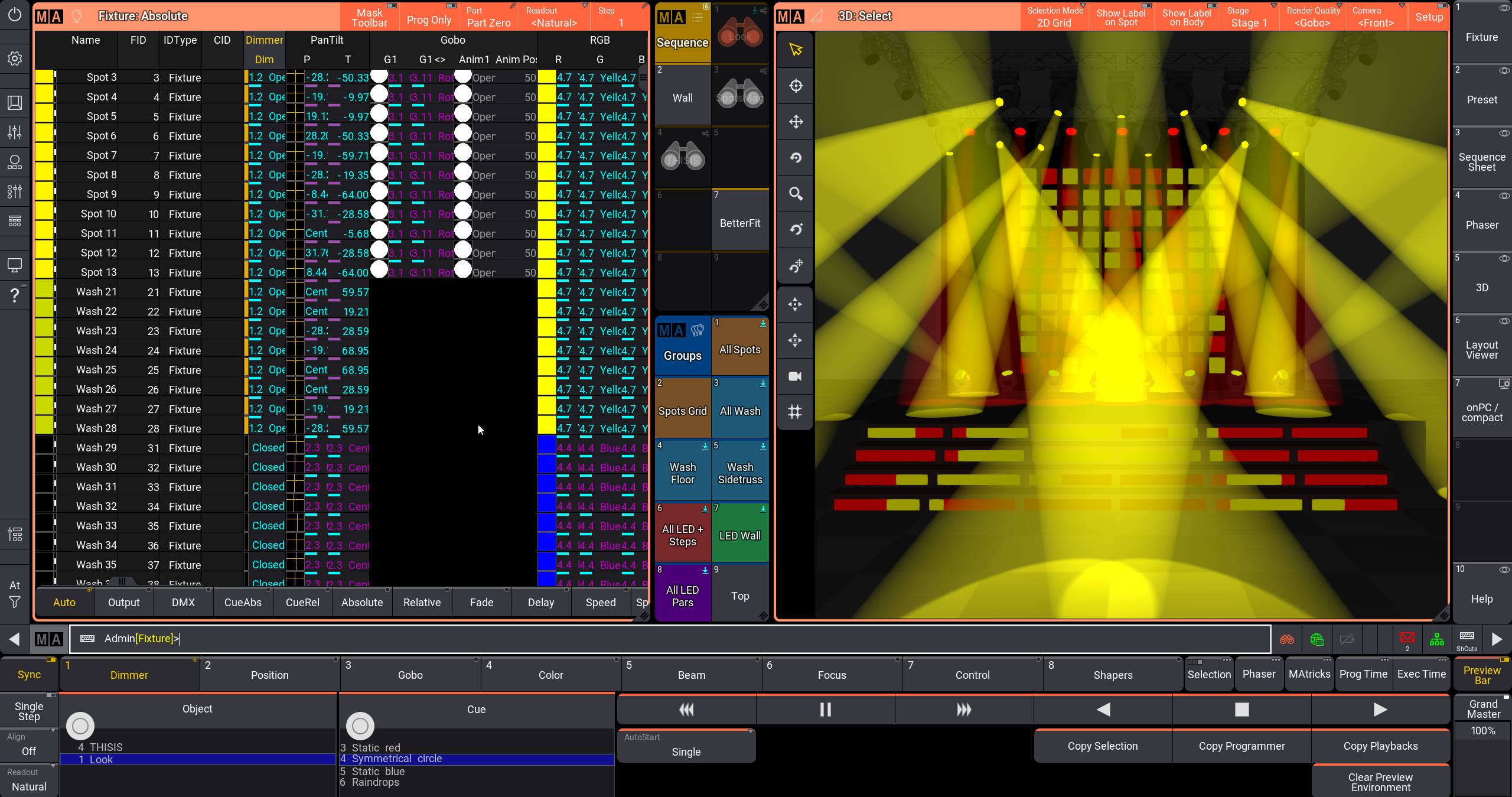
以下のウィンドウはプレビュー・モードに対応しており、プレビューが有効な間はオレンジ色の枠で示されます。
- 3D Viewer
3D Viewer では、プレビュー中の出力またはライブ出力のいずれかを表示できます。両者を切り替えるには、3D Viewer 設定の Misc タブにある Follow Preview をタップしてください。デフォルトでは、3D Viewer で Follow Preview が有効です。 - Align Bar
- At Filter
- Content Sheet
- DMX Sheet
DMX Sheet では、プレビュー中の出力またはライブ出力のいずれかを表示できます。両者を切り替えるには、DMX Sheet 設定の Display タブにある Follow Preview をタップしてください。デフォルトでは、DMX Sheet で Follow Preview が無効です。 - Fixture Sheet
- Layout Viewer
- MAtricks Editor
- Off Menu
- Phaser Editor
- Recipe Editor
- Running Playbacks
- Selection Bar
- Selection Grid
- Sequence Sheet
- sMArt
- Special Dialog
- Step Bar
プレビュー・モードでは、Data Pool Object 128 にある専用のデータプールを使用します。
プレビュー・モードで実行したすべての操作は、Command Line History に表示されます。
|
|
ヒント |
| コマンドラインのフィードバックは、System Monitor には表示されません。 |
マスター・セクションはライブ出力のみに適用されます。
プレビュー中に Highlight、Lowlight、Solo を使用しても、影響するのはプレビュー環境だけであり、ライブ出力には影響しません。
プレビュー・エンコーダバー
プレビュー・エンコーダバーは、プレビュー対象ウィンドウの枠と同じオレンジ色で表示されます。これには2つの異なるモードがあり、プレビュー準備バーと、プレビュー環境に表示されるプレビュー・エンコーダバーがあります。
プレビュー準備バーにアクセスするには、Prvw を1回押します。

これには、準備バーでのみ使用できる2つのトグルボタンがあります。
- Transfer Selection: 有効にすると、プレビューに入るときにセレクションをプレビュー環境にコピーします。
- Transfer Programmer: 有効にすると、プレビューに入るときにライブ・プログラマの値をプレビュー環境にコピーします。

Prvw を2回押してプレビュー・モードに入るか、オブジェクトをプレビューすると、プレビュー・エンコーダバーには以下のコントロールが表示されます。
- Object: エンコーダホイール1で主プレビュー・オブジェクトを選択します。エンコーダを押すと、主プレビュー・オブジェクトを選択するためのドロップダウンが開きます。この選択ドロップダウンでは、プレビューで実行中のシーケンスは右側にある緑の矢印(
 )で示されます。
 - Cue: エンコーダホイール2で現在プレビュー中のキューを選択します。エンコーダを押すと、キューを選択するための Goto Cue ポップアップが開きます。
- <<<: 前キューを選択します。
- II: 現在のキューを一時停止します。
- >>>: 次キューを選択します。
- <: Go- を実行します。
 : Toggle を実行します。
- >: Go+ を実行します。
- AutoStart: シーケンスの自動開始メカニズムを選択します。
- Off: 複数のシーケンスを選択しても、どれも開始されません。
- Single: 複数のシーケンスを選択した場合、最後のシーケンスが開始されます。例えば、Preview Sequence 1 Thru 3 ではシーケンス3が開始されます。
- Multi: 複数のシーケンスを選択した場合、それらすべてが開始されます。
- Copy Selection: ライブ環境のセレクションをプレビュー環境にコピーします。
- Copy Programmer: ライブ環境のプログラマからプレビュー環境のプログラマにデータをコピーします。
- Copy Playbacks: ライブ環境のアクティブなプレイバックをプレビュー環境にコピーします。
- Clear Preview Environment: プレビュー環境からすべてのオブジェクトを削除します。
- Preview Bar: プレビュー・エンコーダバーを切り替えます。
キューが選択されている場合、プレビュー・エンコーダバーではエンコーダの横にシーケンスが表示されます。