スクリブルの作成
| grandMA3 ユーザマニュアル » スクリブル » スクリブルの作成 | Version 2.4 |

|
ヒント |
| スクリブルの編集と作成は、同じ手順で行います。 |
スクリブルは、Scribbles プールまたは Label ポップアップで編集できます。
Scribbles プールでのスクリブル作成
スクリブルは Scribbles プール保存されます。

Scribbles プールのオブジェクトを編集するには、以下のいずれかの方法を用います。
- Edit を押して、Scribbles プール内のオブジェクトをタップします。
- プール・オブジェクトで Swipey コマンド を開き、Edit を選択します。
- 2本指編集 またはマウスの右クリックを用います。
- コマンドラインを使用します。コマンドラインを用いたオブジェクトの編集については、Edit キーワード を参照してください。
Edit Scribble ポップアップが開きます。
既存のプール・オブジェクトを編集する場合、Scribble Editor はスクリブルの現在の状態で開きます。
スクリブルを描くには、ポップアップの左側にあるパッド上で指を動かしてください。
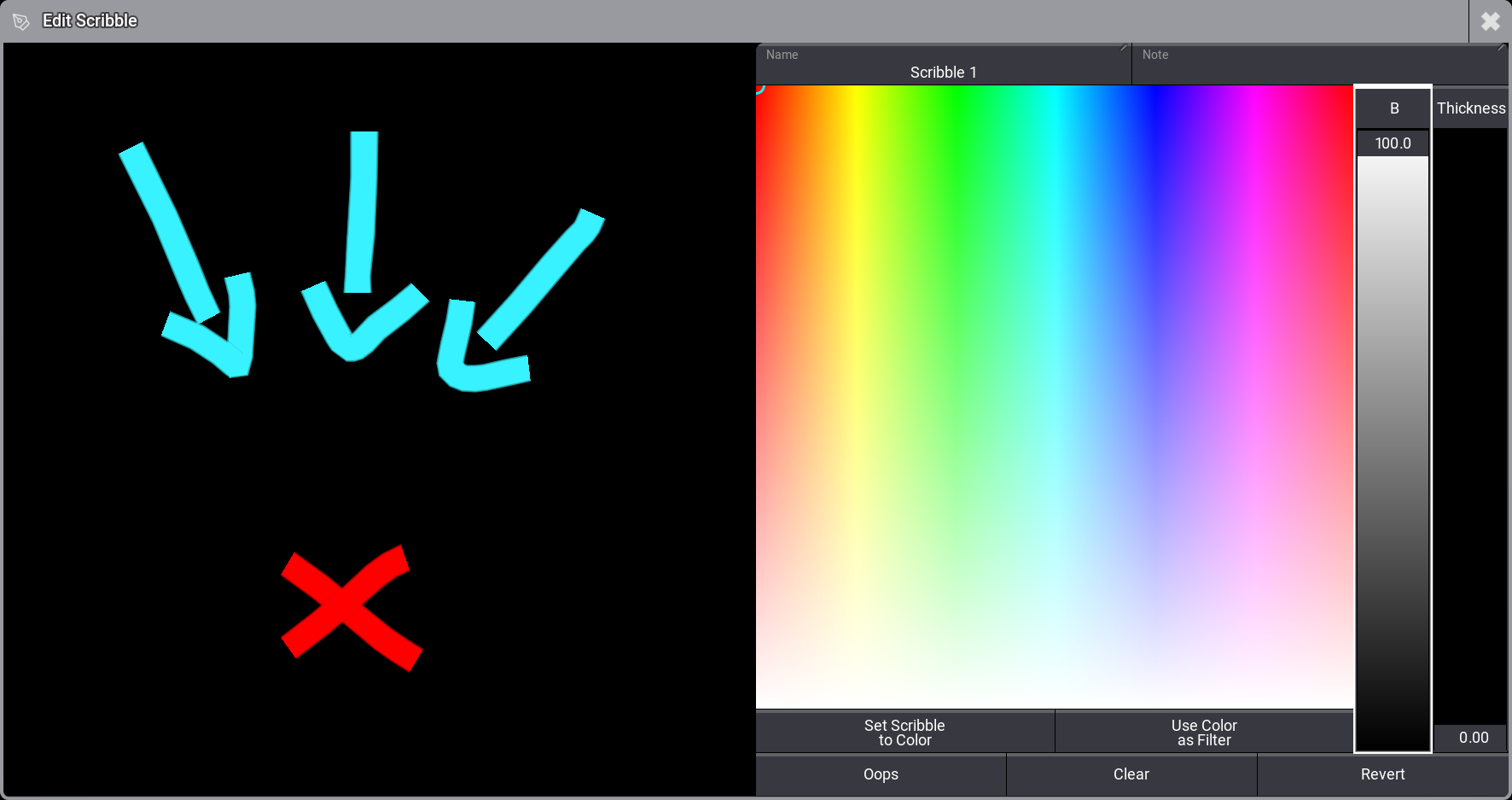
Scribble Editor での変更は、Scribble プール・オブジェクトにすぐに適用されます。
他のオブジェクトでのスクリブル作成
他のオブジェクト内で直接スクリブルを作成する方法は2つあります。
- Label ポップアップ を開き、タイトルバーの
 をタップします。
 - オブジェクトの設定で Scribble をタップし、ドロップダウンで New を選択します。
オブジェクト内で作成したスクリブルは、自動的に Scribbles プールの最初の空き位置に保存され、そのオブジェクトに適用されます。
色の設定
スクリブルを描く前に色を選択することも、描いた後でスクリブルの色を変更することもできます。
スクリブルの色を選択するには、以下のようにします。
- Color Picker 内の任意の場所をタップして、色を選択します。
- B フェーダを動かして、色の明るさを増減します。
描画を開始すると、スクリブルは選択した色で表示されます。スクリブル内の線ごとに異なる色を使用できます。
色を選択してから Set Scribble to Color をタップすると、スクリブル全体をその色に設定できます。
色を選択して Use Color as Filter をタップすると、スクリブルで使用されている色に対して、選択した色をフィルタとして適用できます。
Thickness フェーダを動かして、新しく描画する線の太さを調整できます。
|
|
ヒント |
| ソフトウェアは、スクリブルの色と太さの設定を保存します。 |
変更の復元
変更を元に戻す方法はいくつかあります。
- Oops: タップすると、直前の変更を元に戻します。
- Clear: タップすると、最初からやり直せます。
- Revert: タップすると、エディタを開く前の状態に戻します。
Label the Scribble
名前を編集するには、Label キーワード を使用するか、Label Scribble ポップアップで Name をタップします。
スクリブルには、他のプール・オブジェクトと同様に名前を付けることができます(プール・ウィンドウ - プール・オブジェクト を参照)。