Message Center
| grandMA3 ユーザマニュアル » システム » Message および Status Center » Message Center | Version 2.5 |
Message Center には、システムによって生成されたメッセージが表示されます。
コマンドライン右側の封筒アイコン( )は、Message Center の新着メッセージに応じて色が変わります。
アイコンには、最も優先順位の高い新着メッセージの色が表示されます。
封筒アイコンの下の数字は、情報メッセージを除く新着メッセージ数を示します。
メッセージのカテゴリは以下の通りです。
- System
- Command Line
- Power
- MA-Net
- USB
- Chat
USBとチャットのメッセージは、そのデバイス固有のものです。 セッション内の他のデバイスには表示されません。
メッセージには異なる優先順位があります。
- Information (緑): 通常、ユーザによる操作や入力を必要としない内部システム処理に関する情報です。
- Warning (黄色): 重要または注意する必要がある情報です。
- Error (茶色): 無効な操作やソフトウェアの不具合に関する情報です。
- Alert (赤): 重大なイベントに関する情報です。このカテゴリのメッセージは、通常は直ちに対応が必要です。
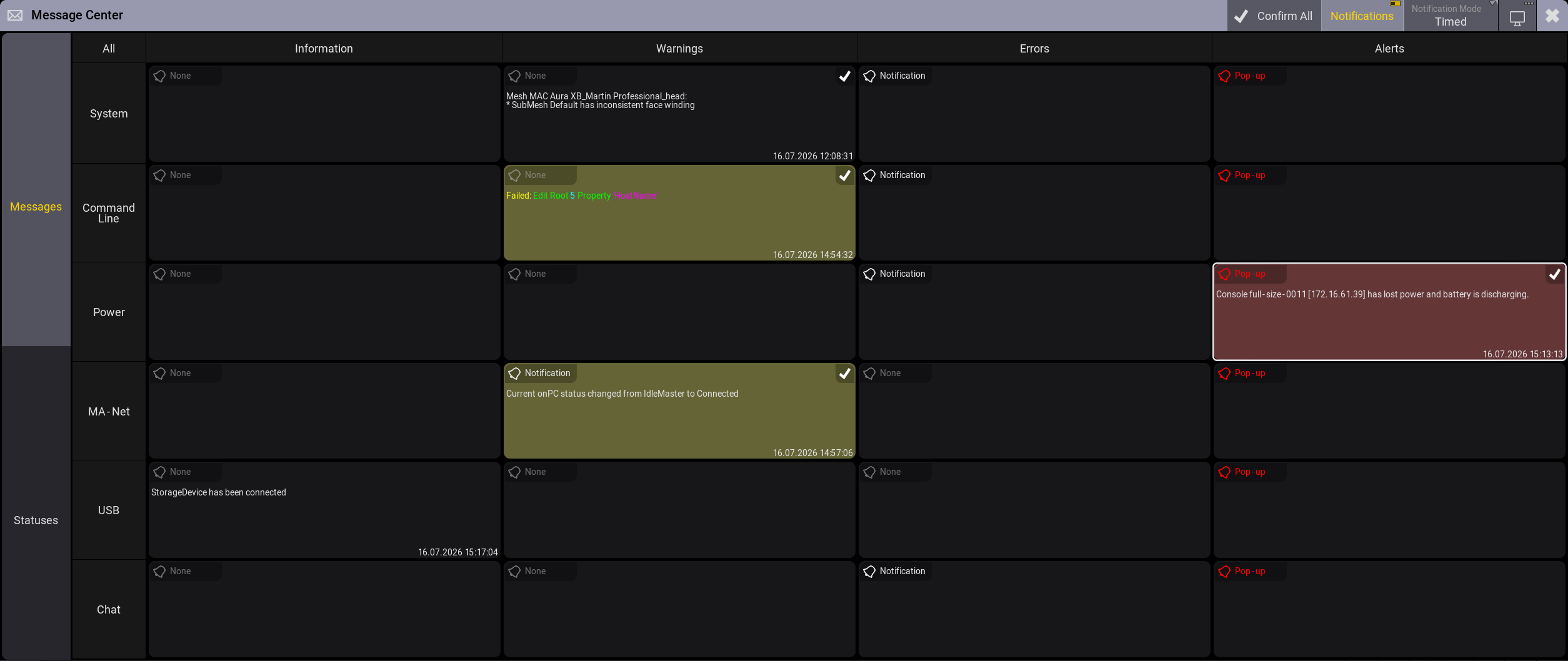
各セルには、そのカテゴリと優先順位の最新メッセージが表示されます。
最新メッセージのタイムスタンプは、セルの右下に dd.mm.yyyy hh:mm:ss の形式で表示されます。
新しいメッセージを受信すると、セルの背景がその優先順位の色で点滅します。
メッセージ
各優先順位で表示されるメッセージの詳細については、以下のセクションを参照してください。

|
重要 |
| メッセージの以下の一覧は、Message Center に表示されるメッセージの抜粋です。すべてのメッセージがここに記載されているわけではありません。 |
| メッセージ |
説明 |
|---|---|
| Mouse has been connected | ストレージ・デバイスやマウスなどのデバイスがステーションに接続されました。操作は不要です。 |
| StorageDevice has been disconnected | ストレージ・デバイスやマウスなどのデバイスがステーションから切断されました。操作は不要です。 |
| メッセージ | 説明 |
|---|---|
| Current onPC status changed from Connected to IdleMaster | マスター・ステーションがセッションから切断され、onPC がセッション内で単独になりました。想定外の場合は、セッション内で以前マスター・ステーションだったステーションを確認してください。 |
| Disconnected from session | ローカル・ステーションがセッションから離脱しました。例えば Dismiss Station または Leave Session をタップしてステーションをセッションから除外した場合に、このメッセージが表示されます。意図的にステーションを除外した場合は、操作は不要です。 |
| Console disconnected unexpectedly. | ローカル・ステーションが、ユーザによる明示的な削除操作なしにセッションから離脱しました。ネットワークを確認してください。 |
| Stage bounding box is irregular: Do all fixtures have the correct positions? | 位置の範囲が異常です。例えば、位置の値が高すぎるフィクスチャが原因である可能性があります。これにより、3D Viewer で問題が発生することがあります。フィクスチャおよび Environmental オブジェクトの位置を確認し、必要に応じて修正してください。 |
| メッセージ |
説明 |
|---|---|
| Failed to perform an initialization during a showfile load. | ショーファイル内のデータが破損している可能性があります。ショーファイルを再度読み込んでください。ショーファイルを読み込めない場合は、ショーファイルのバックアップ・バージョンを読み込んでください。 |
| No world server connection. | ステーションがワールドサーバに接続されていません。そのため、GDTF Share や grandMA3 Share からのファイルのインポートなど、一部のサービスを利用できません。 |
| Device has a faulty battery. | デバイスのバッテリーが正常に充電されません。お近くのサポートにお問い合わせください。 |
| Console has lost power and battery is discharging. | デバイスが電源に接続されておらず、バッテリーで動作しています。ショーファイルを保存し、電源ケーブルと電源プラグを確認してください。 |
| メッセージ | 説明 |
|---|---|
| Out of video memory. Please save your show file and restart the software as soon as possible. | ソフトウェアが想定以上のVRAMを使用しており、予期せず終了する可能性があります。ショーファイルを保存し、ソフトウェアを再起動してビデオメモリを解放してください。問題が解決しない場合は、ソフトウェア内の 3D Viewer を閉じてみてください。 |
| Station with IP address [IP address] does not work in session. | デバイスに問題があります。お近くのサポートにお問い合わせのうえ、シリアル番号をお伝えください。 |
メッセージの通知
Message Center のメッセージは、ソフトウェア内で通知として表示できます。
通知を表示するかどうかを選択するには、Message Center のタイトルバーにある Notifications を切り替えます。
Notifications はデフォルトで有効になっています。
Message Center のメインビューでは、各セルの左上にベル・アイコン( )と対応する通知タイプが表示されます。
アイコンの色は通知タイプに応じて変わります。
オプションは以下の3つです。
- None: 通知は表示されません。(灰色アイコン)
- Notification: すべての大画面の右上に通知が表示されます。(白アイコン)
- Pop-up: すべての画面の中央にポップアップが表示されます。(赤アイコン)
- OK をタップすると、ポップアップは閉じますが、メッセージは Message Center で引き続き新着として表示されます。
- Confirm Message をタップすると、ポップアップが閉じ、メッセージは Message Center で既読としてマークされます。
カテゴリの通知タイプを選択するには、ベル・アイコンをタップしてオプションを切り替えるか、アイコンをスワイプして3つの選択肢すべてを含むドロップダウンリストを表示します。
Information カテゴリの通知タイプは常に None に設定されており、変更できません。
通知の背景色は優先順位の色に対応しています。さらに、通知内には優先順位を示すアイコンが表示されます。
- Warning:
 と黄色の背景
 - Error:
 と茶色の背景
 - Alert:
 と赤の背景
と赤の背景
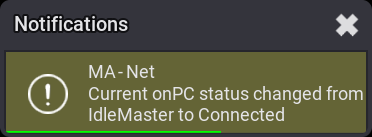
タイトルバーやウィンドウ設定の Notification Mode で、通知の表示時間を選択します。
以下の2つの選択肢があります。
- Timed: 通知は 5 秒間表示されます。
- Permanent: 通知は閉じるまで表示されます。
メッセージ一覧
Message Center のすべてのメッセージは一覧表示できます。
- Message Center のすべてのメッセージを一覧表示するには、メインビューのグリッド左上にある All をタップします。
- カテゴリ別または優先順位別のメッセージ一覧を開くには、該当するヘッダをタップします。
- カテゴリと優先順位に対応するメッセージ一覧を表示するには、メインビューのグリッドで該当するセルをタップします。
ウィンドウが開き、Time、Sender、Category、Priority、およびメッセージ自体の情報を含む一覧が表示されます。
Sender 列には、メッセージを送信したデバイスの名前とIPが表示されます。
カテゴリのメッセージ一覧では、Time、Category、Priority、Message 列の幅を調整できます。調整するには、タイトルバーにある区切り線をタップしてドラッグします。
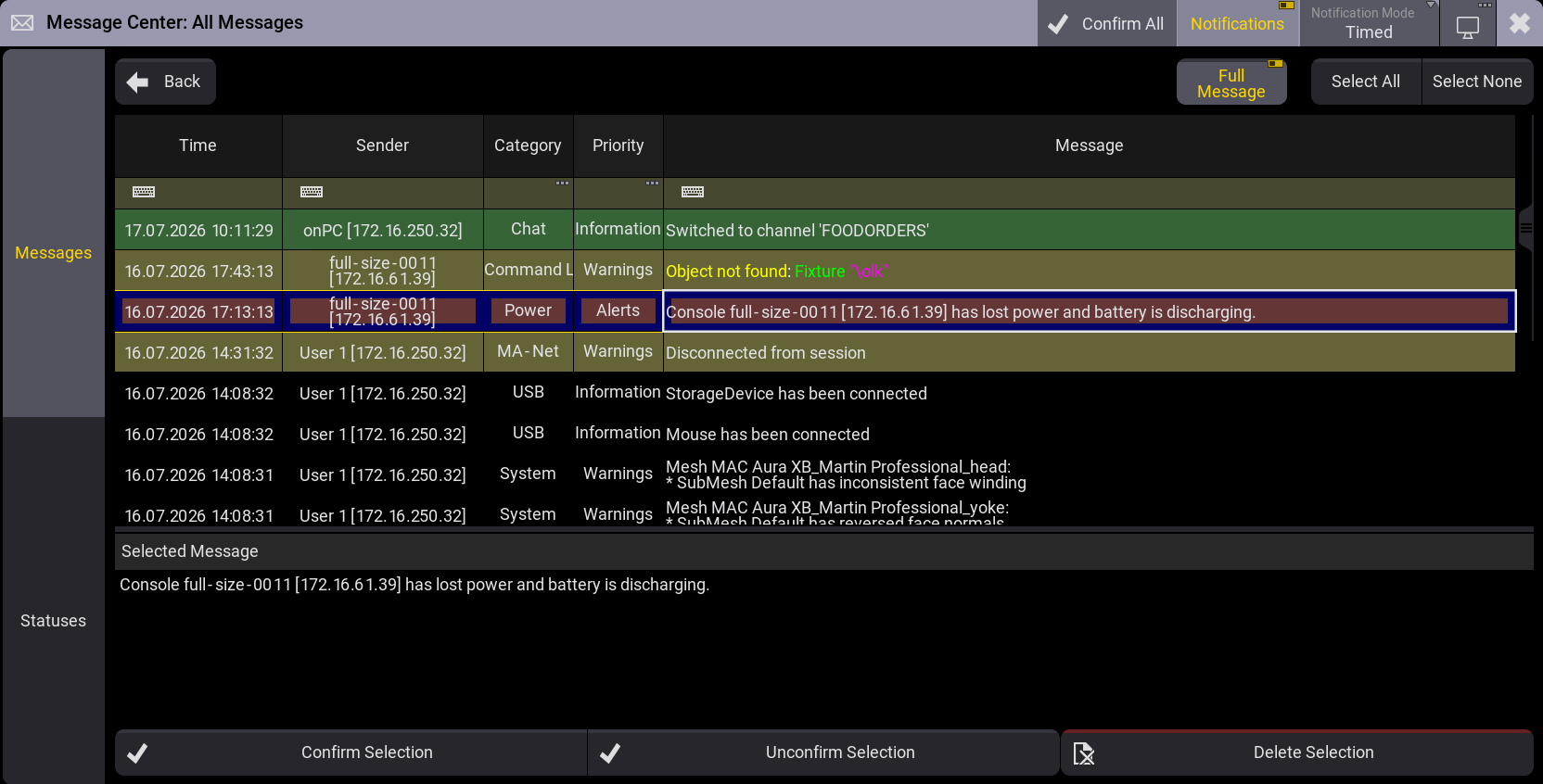
メッセージ一覧は、グリッドの黄色いフィルタ行を使って変更できます。Category 列と Priority 列では、<No Filter> でフィルタを無効にし、Undefined でどのカテゴリまたは優先順位にも属さないメッセージを表示します。
詳しくは 一時的なフィルタリング を参照してください。
メッセージ一覧の右上隅には3つのボタンがあります。
- Full Message
選択したメッセージ全体を、メッセージ一覧の下に表示します。 - Select All
一覧内のすべてのメッセージを選択します。 - Select None
一覧内で選択されているすべてのメッセージの選択を解除します。
メッセージの確認と削除
メッセージを確認すると、Message Center で既読としてマークされます。未確認のメッセージは、優先順位の色の背景で示されます。メッセージを確認すると、その色付きの背景は消えます。
Information のメッセージは、デフォルトで確認済みとしてマークされています。
- すべてのメッセージを確認するには、Message Center のタイトルバーにある
 Confirm All をタップします。

ヒント Confirm All は、フィルタされたメッセージ一覧が表示されている場合でも、常に Message Center のすべてのメッセージに適用されます。
- カテゴリ内のすべてのメッセージを確認するには、Message Center のメインビューで、該当するセルの左上にある
 をタップします。このアイコンは、そのカテゴリに新着メッセージがある場合にのみ表示されます。
 - 選択した複数のメッセージまたは単一のメッセージを確認するには、Message Center のセルをタップしてメッセージ一覧を開きます。次に、確認するメッセージを選択し、一覧の下部にある Confirm Selection をタップしてください。
- コマンドラインでメッセージを確認する方法については、MessageCenter キーワード を参照してください。
メッセージの確認を解除すると、未読としてマークされ、背景色が再び表示されます。これを行うには、メッセージ一覧を開き、未読としてマークするメッセージを選択してから、一覧の下部にある Unconfirm Selection をタップしてください。
Message Center からメッセージを削除するには、メッセージ一覧で削除するメッセージを選択し、その下部にある  Delete Selection をタップします。削除したメッセージは、一覧に表示されなくなります。
 |
重要 |
| Confirm、Unconfirm、Delete の操作は取り消せません。 |