sMArt
| grandMA3 ユーザマニュアル » フィクスチャの操作 » sMArt | Version 2.4 |
sMArt ウィンドウは、フィクスチャで定義されているチャンネルセットに素早くアクセスできる動的プールです。チャンネルセットは、フィクスチャタイプの一部です。フィクスチャ・セレクションとエンコーダバーで選択されたアトリビュートに応じて、sMArt ウィンドウ内のプール・オブジェクトが変化します。各プール・オブジェクトは、フィクスチャ・プロファイルで定義されているチャンネルセットを表しています。フィクスチャタイプの構築、Create Presets from Fixture Types、および Store Presets to Fixture Types も参照してください。
Add Windows ポップアップで Tools をタップし、続けて sMArt をタップすると、ウィンドウが開きます。
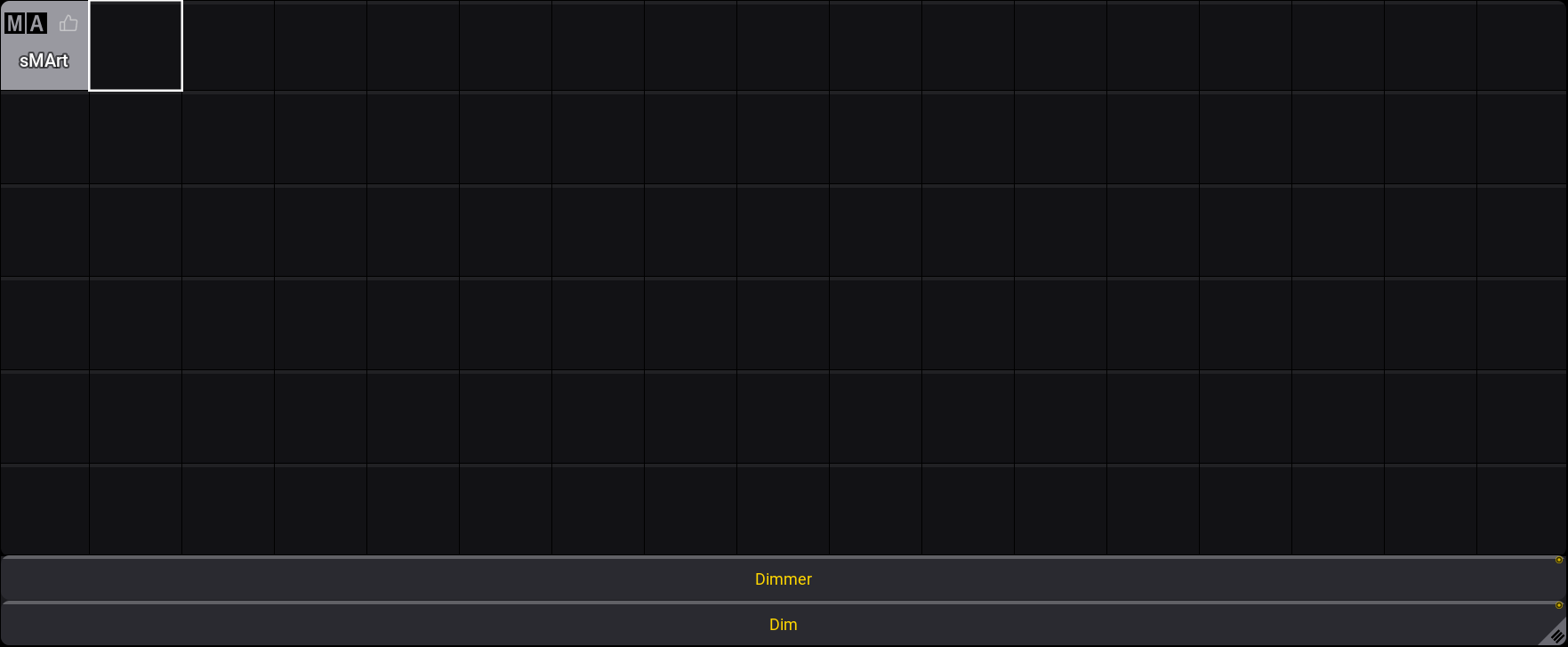
- いくつかのフィクスチャを選択すると、sMArt ウィンドウは以下のようになります。
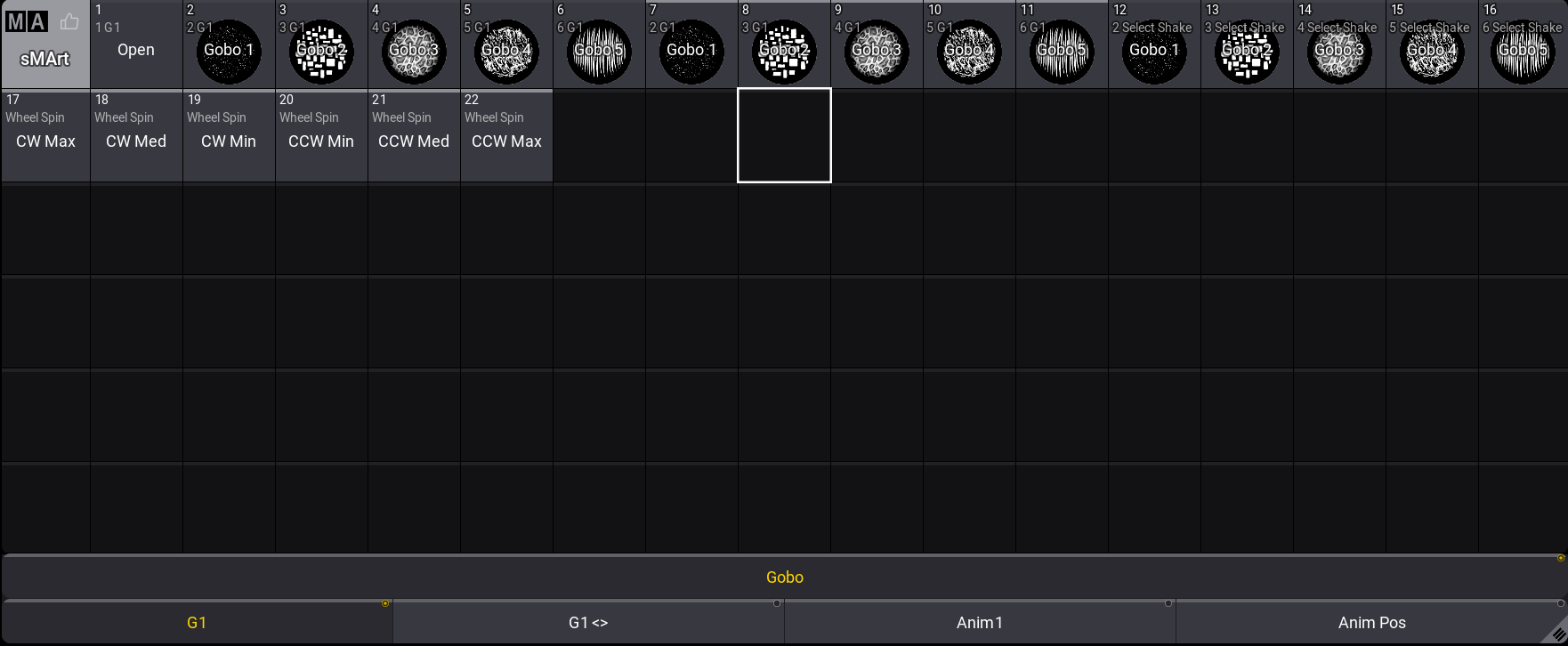
sMArt ウィンドウでオブジェクトをタップすると、対応する値がプログラマに入力されます。
sMArt ウィンドウの下部には、アトリビュート選択バーが表示されます。これにより、現在選択されているフィーチャグループで目的のアトリビュートを簡単に選択できます。上の画面例では、Gobo フィーチャグループ、選択されている Gobo Wheel 1 (G1) アトリビュート、そして Gobo フィーチャグループの他のアトリビュートである G1<>、Anim 1、Anim Pos が表示されています。
ウィンドウ左上のMAロゴをタップすると、sMArt Window Settings が開きます。詳しくは、Pool Settings を参照してください。
sMArt オブジェクトの編集
対応するプール・オブジェクトのチャンネルセット値を編集するには、以下のようにします。
- フィクスチャを選択します。
- Edit を押してプール・オブジェクトをタップするか、Swipey コマンドを用いると、Edit Fixture Type ウィンドウが開きます。
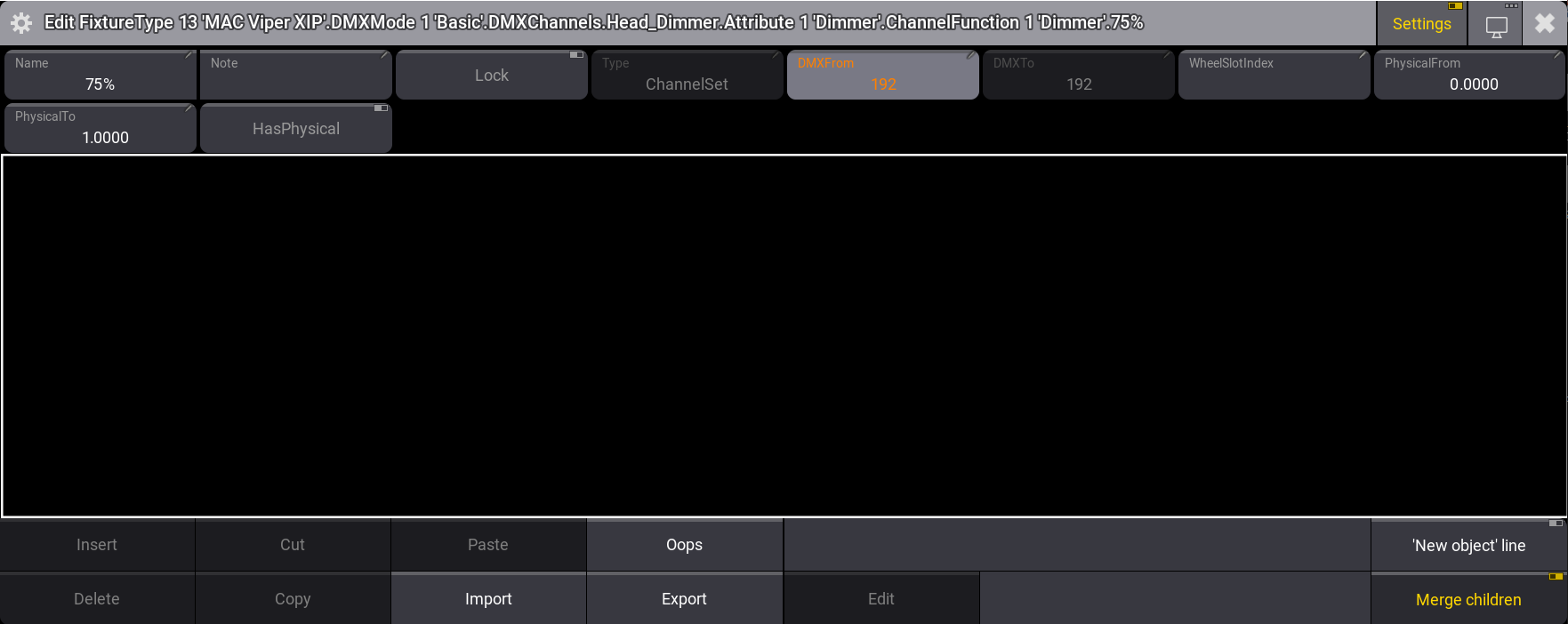
- タイトルバーの Settings を有効にしてから、値を変更します。詳しくは、DMXモードおよびDMXチャンネルの挿入 を参照してください。
 をタップしてエディタを閉じます。チャンネルセット値が変更されます。