Edit Recipe モード
| grandMA3 ユーザマニュアル » レシピ » Edit Recipe モード | Version 2.4 |
Edit Recipe モードによるレシピの作成
レシピは、キューパートやプリセットで扱うだけでなく、プログラマ内でも作成・編集できます。 このモードは、レシピを素早く効率的に作成するためのワークフローに基づいています(プログラマ を参照)。すべてのプール項目のセレクションが記録されてレシピに保存され、その後プリセットやキューに簡単に保存できます。

|
制限 |
| Edit Recipe モードは標準レシピでのみ使用できます。 |
Recipe Editor ウィンドウは、Edit Recipe モードでレシピを視覚化して編集するための便利なツールです。詳しくは Recipe Editor ウィンドウ を参照してください。
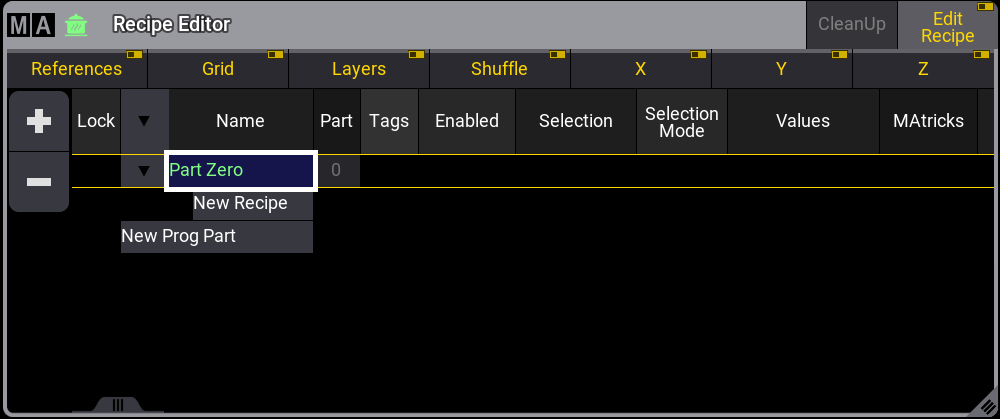
Edit Recipe モードを有効にする方法はいくつかあります。
- Recipe Editor ウィンドウのタイトルバーにある Edit Recipe をタップします。
- At Filter メニューで Edit Recipes を有効にします。
- EditRecipe キーワードを使用します。
Edit Recipe モードが有効な間は、Edit と Esc が交互に点滅します。Edit Recipe モードを無効にするには、Esc を押すか、上のいずれかの方法で Edit Recipe モードを切り替えます。Edit Recipe モードを無効にすると、すべてのプールは通常どおりに動作します。
レシピに使用できる各オブジェクト・タイプでは、Edit Recipe モードを有効にすると、そのプール・ウィンドウに緑の  が表示されます。

以下のウィンドウではレシピ・インジケータが使用されています。
- Groups
- Preset Pools
- MAtricks
- Worlds
- Filters
- Layout Viewer
- Fixture Sheet
 |
ヒント |
| 対応するプールの Pool Action 設定が SelFix/At または At に設定されていることを確認し、レシピで使用できるようにしてください。 |
Edit Recipe モードでレシピを作成するには、Groups プール、複数のプリセットプール、Sequence プール、および Recipe Editor ウィンドウを表示しておくと便利です:
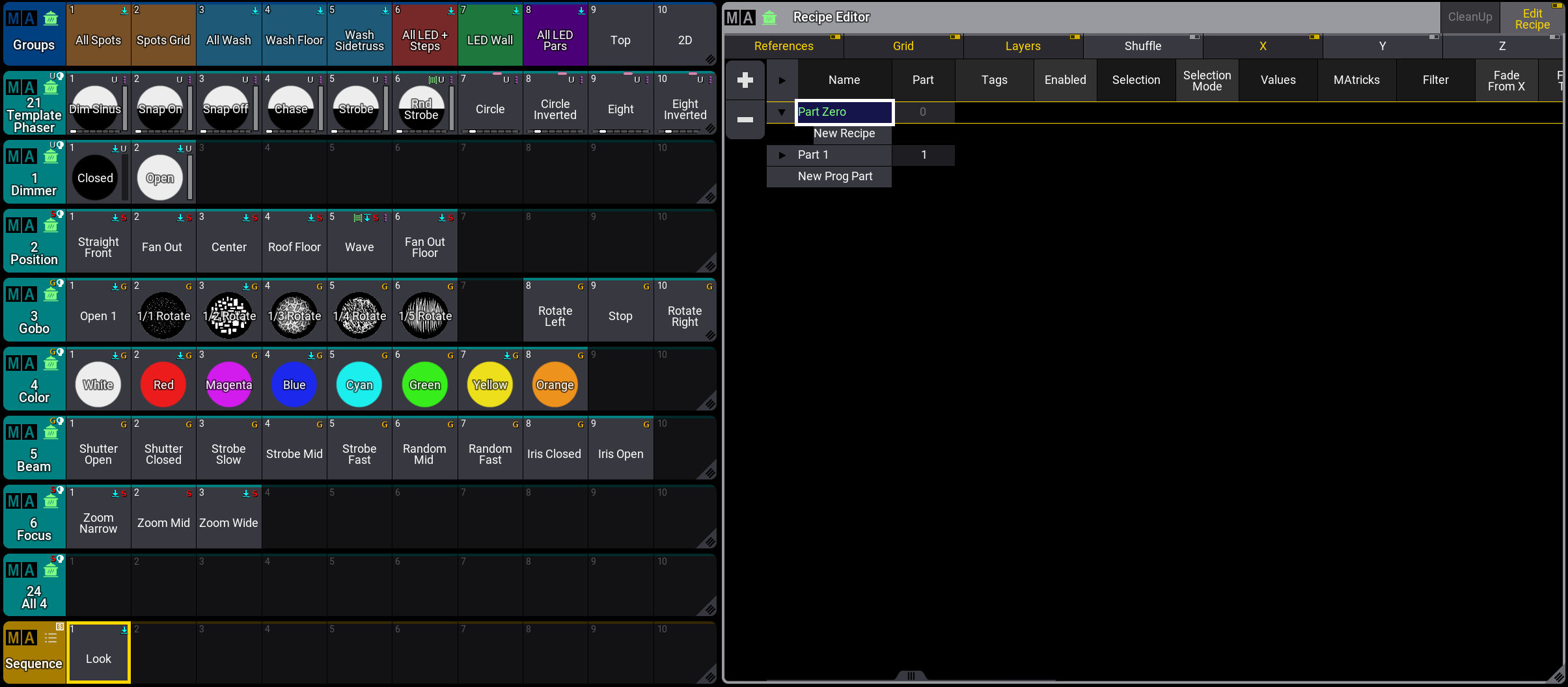
以下の手順は、レシピ作成の一般的なワークフローを示しています。実際の例については、後述 を参照してください。
- Edit Recipe モードを有効にします。
- グループを選択します。選択したグループは、プール・オブジェクトの周囲にある緑枠で示されます。 複数のグループを同時に選択できます。
- プリセットを選択します。選択したグループのフィクスチャと互換性のないプリセットはグレーアウトされます。現在選択中のグループのレシピに含まれるオブジェクトは、各プールウィンドウで緑枠表示されます。最後に選択したプリセットと、Recipe Editor 内の対応するレシピ行は、オブジェクトの周囲を回転する緑色のドットで表示されます。これらの回転するドットは、それが MAtricks またはフィルタ値の対象であることを示します。
選択済みのオブジェクトをもう一度タップすると、選択が解除されます。すでに使用されているプリセット(緑枠付き)を選択するには、MA を押しながらそのプリセットをタップしてください。これで、対応するレシピに MAtricks、フィルタ、ワールドを適用できます。Recipe Editor ウィンドウでは、対応する行が緑の点線枠で表示されます。
選択に複数の値を追加でき、Recipe Editor ウィンドウでは選択した値ごとに1つのレシピ行が作成されます。別のセレクションも指定できます。例えば、Group 2 をタップします。プール・オブジェクトの茶色の枠は、Group 1 など前のセレクションの値を示しています。再度 Group 1 をタップすると、このセレクションに対して以前に指定された値が再び緑で強調表示されます。グループ・オブジェクトの下部にあるフィーチャグループ・インジケータバーは、そのグループのレシピで有効なフィーチャグループを示します。 - 新しいレシピをキュー、キューパート、またはプリセットに保存します。レシピを保存すると Recipe Editor はクリアされ、選択されたオブジェクトとしてグループのみが残ります。
セレクションと値の記録順は、レシピの処理方法に影響します。同じセレクションで同じアトリビュートを参照する複数のレシピ行がある場合、最後のレシピ行が出力を決定します。例えば Color プリセットプールなど、特定のフィーチャグループ用の プリセットプール にレシピを保存すると、Color 値だけでなく、選択したプログラマ・パートのすべてのレシピ行が保存されます。
EditRecipe キーワードを、対応するキュー、キューパート、またはプリセットとともに実行すると、Recipe Editor モードでその特定のオブジェクトの編集モードが有効になります。Off を押しながらグループやプリセットをタップすると、対応するレシピ行が削除されます。グループやプリセットに複数の行が関連付けられている場合、対応する行がすべて削除されます。
値をレシピに直接入力することはできず、最初にプリセットに保存する必要があります。プリセットが選択されていない場合、値は直接プログラマに入ります。
 |
重要 |
| レシピ作成のために入力した値は、プログラマに直接入力された値を上書きまたは置き換えません。自動的にクックされたレシピは低い優先順位で扱われます。プログラマの値を明示的に上書きまたはマージするには、Cook キーワード でプログラマをクックします。また、MAtricks 値はレシピでのみ機能し、プログラマには影響しません。 |
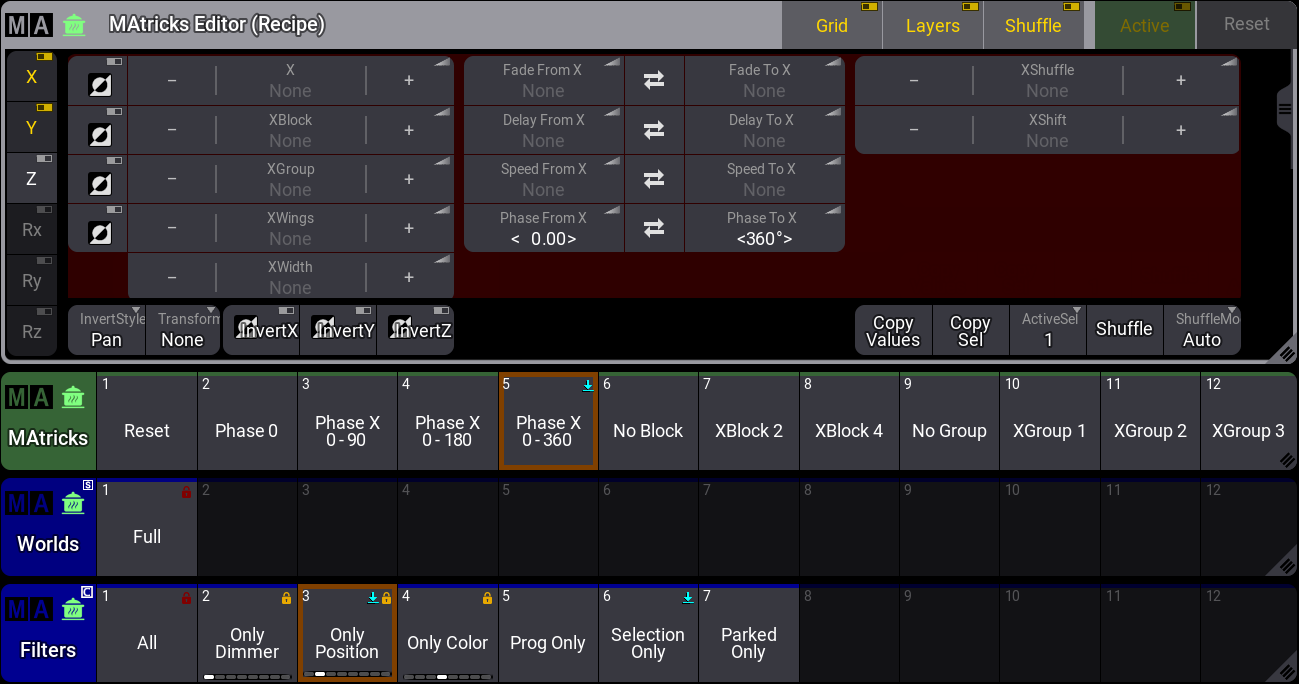
MAtricks Editor を開いて、レシピ行に特定の MAtricks 値を指定します。レシピの編集に MAtricks Editor を使用している間は、タイトルバーに "(Recipe)" と緑のポット・アイコンが表示されます。プリセットとレシピ行の周囲を回転するドットは、MAtricks 値の対象を示します。
最後に作成したレシピに MAtricks、Worlds、Filters を追加するには、プール内のオブジェクトをタップします。MAtricks、Worlds、Filters のプール・オブジェクトは、レシピで使用されている場合、周囲に茶色の枠が表示されます。
例
これは、Recipe Editor ウィンドウを用いてキューのレシピ行を作成する簡単な例です。
必要条件:
- デモショー・ファイルを読み込む。
- プリセットプール、Groups プール、Recipe Editor ウィンドウ、MAtricks Editor を表示。Sequence プールもあると便利ですが、必須ではありません。
次の手順で2つのレシピ行を作成し、キューに保存します。
- Recipe Editor ウィンドウで Edit Recipe を有効にします。
- Group 1 をタップして選択します。Group 1 は緑枠で表示されます。
- Dimmer プリセット2をタップします。Dimmer プリセットは緑の点線枠で表示されます。
- Color プリセット2をタップします。緑の点線枠が Color プリセットに移動します。
この時点で、2つのレシピ行が作成されています。どちらの行でも Group 1 が Selection です。Values では、1行目がプリセット1.2、2行目がプリセット4.2 です。 - 次に、別のグループ(Group 3)をタップして選択します。
それまで選択されていたすべてのプール・オブジェクトは選択解除され、茶色の枠で表示されます。 - Dimmer プリセットと Color プリセットを再び選択します。プリセット1.2 とプリセット4.4をタップします。
選択したプリセットはグループ3に関連付けられます。 - Position プリセット3をタップします。
- テンプレート・フェイザー・プリセット1をタップします。
- MAtricks Editor にいくつかの値を追加します。phase from X を0に、phase to X を360°に設定します。
MAtricks Editor の値は、緑の点線枠で表示されている最後に作成された Phaser プリセットのレシピ行に追加されます。これは、Recipe Editor ウィンドウの Recipe 6 の Name 列にある小さな MAtricks アイコンで示されます。
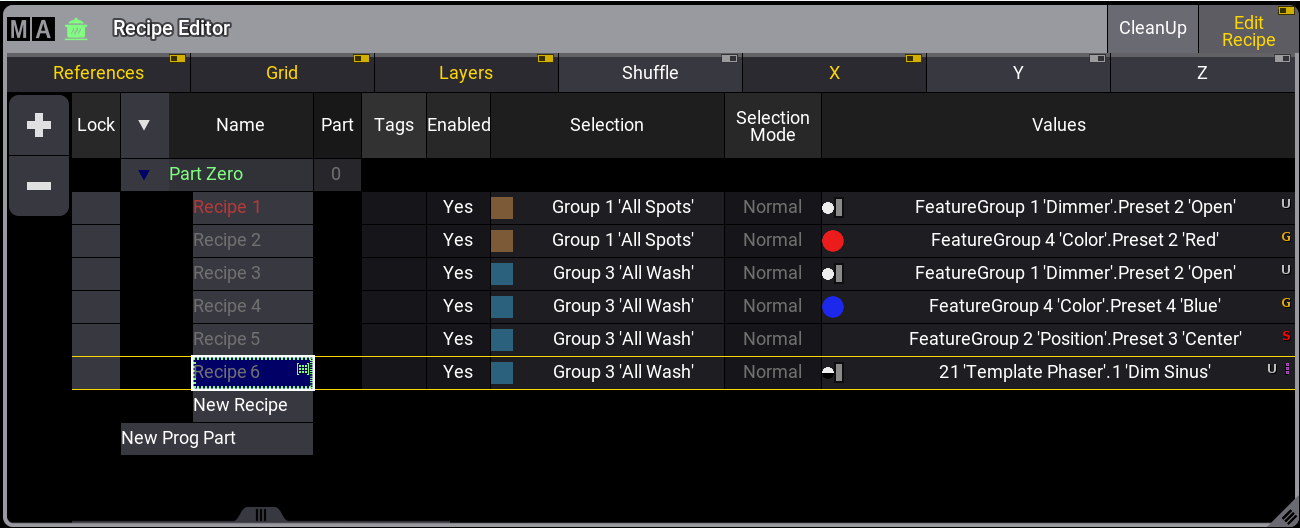
6つのレシピ行がある Recipe Editor ウィンドウ - レシピ行6の周囲を回転するドットは、それが MAtricks または Filter 値の対象であることを示します。 - 最後の手順として、すべてのレシピ行をキューに保存します。 Store Sequence 2 Cue 1.
6つのレシピ行を含むキュー1が作成され、すべての行が Recipe Editor ウィンドウから削除されます。
例を見るには、以下の動画をタップしてください。