シェイプ
| grandMA3 ユーザマニュアル » シェイプ | Version 2.4 |
シェイプ(Shape)は、時間経過に応じたステップ間の値の変化を定義する単一レシピのオブジェクトです。

|
ヒント |
| シェイプは、フェイザー・レシピ と組み合わせて使用すると最も効果的です。フェイザー・レシピではシェイプ・オブジェクトを用いることで、レシピ内のカーブやその他の値を素早く簡単に設定できます。 フェイザー・レシピの作成方法と、その中でのシェイプの使用方法については、レシピ を参照してください。 |
シェイプは Shapes プールに保存されます。このプールを開くには、Add Window ポップアップの Data Pools タブを参照してください。
シェイプにアトリビュート情報が含まれている場合、シェイプの下部にフィーチャグループ・インジケータバーが表示されます。白い四角は、対応するフィーチャグループのアトリビュート値がシェイプに保存されていることを示します。
汎用のシェイプで、アトリビュート値を含まないものにはフィーチャグループ・インジケータバーはありません。
プールには22個の定義済みシェイプがあります。一部の定義済みシェイプは特定のアトリビュート専用であり、一部は汎用で、複数またはすべてのアトリビュートに適用できます。

シェイプには Transition、Width、Acceleration、Deceleration の値が含まれます。
さらに、Attributes、Speed、Measure、Adaptive Measure、Adaptive Width、Adaptive XY Rotation をシェイプに設定できます。
1つ以上のアトリビュート情報を含むシェイプは、プログラマ に呼び出して直接出力できます。シェイプに設定された値は、現在の選択に対して、そのシェイプで定義されているアトリビュートに適用されます。
汎用シェイプをプログラマに呼び出した場合、シェイプに設定された値は、プログラマ内でマルチステップ値を持つアクティブなアトリビュートに適用されます。
プールの設定にアクセスするには、プール左上にある MA をタップしてください。
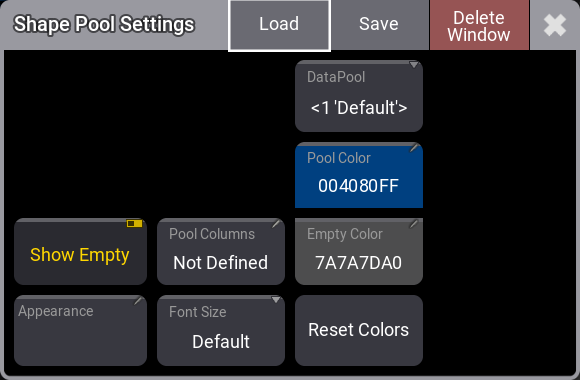
Shape プールの設定は以下の通りです。
- Show Empty
このトグルボタンで、空のプール・オブジェクトの表示/非表示を切り替えます。 - Appearance
プール・オブジェクトの背後に適用されるアピアランスを設定します。 - Pool Columns
プール・オブジェクトの幅を指定します。ウィンドウのサイズは変更されません。ウィンドウ内に表示されるプール・オブジェクトの列数を指定します。ウィンドウ幅が列数に対して広い場合、余分な領域は黒(デフォルト色)で表示されます。ウィンドウ幅が列数に対して狭い場合、プール・ウィンドウは水平方向にスクロールできます。プール幅が設定されている場合、タイトル欄の右上にアイコン( )が表示されます。
Not Defined 値では、ウィンドウのサイズ変更時も、幅がウィンドウサイズに合わせて動的に設定されます。
Take Current Width では、現在のウィンドウサイズに合わせて幅が設定されます。ウィンドウサイズを変更しても、動的には変わりません。 - Font Size
10~32の間でさまざまなフォントサイズを選べます。また、デフォルトのプロパティもあります。これは18に相当し、プール・オブジェクトのフォントサイズを変更するだけです。 - DataPool
このプール・ウィンドウに表示するデータプールを指定します。これにより、異なるデータプールのオブジェクトを別々のプール・ウィンドウに表示できます。例えば、デフォルトのデータプールの Group プール・ウィンドウと、別のデータプールのグループを表示する Group プール・ウィンドウを並べて表示できます。 - Pool Color
プール内のタイトルボタンの色です。 - Empty Color
この色は空のプール・オブジェクトに適用されます。 - Reset Colors
色をデフォルトのカラーテーマに戻します。
シェイプの編集
シェイプを編集するには、プール・オブジェクトで Swipey コマンド を用いるか、Edit を押してプール・オブジェクトをタップします。
Shape Editor には2つのタブがあります。Sheet タブではシェイプのすべてのプロパティにシート形式でアクセスでき、1D タブではシェイプを 1D レイアウト で視覚化できます。
1D エディタは、フェイザー・レシピでシェイプまたはカーブ値を編集するとき、Recipe Editor の コンテキスト・エリア にも表示されます。
Sheet タブ
Sheet ビューでは、シェイプで指定できるプロパティにアクセスできます。 これらのプロパティについては、Recipe Editor を参照してください。
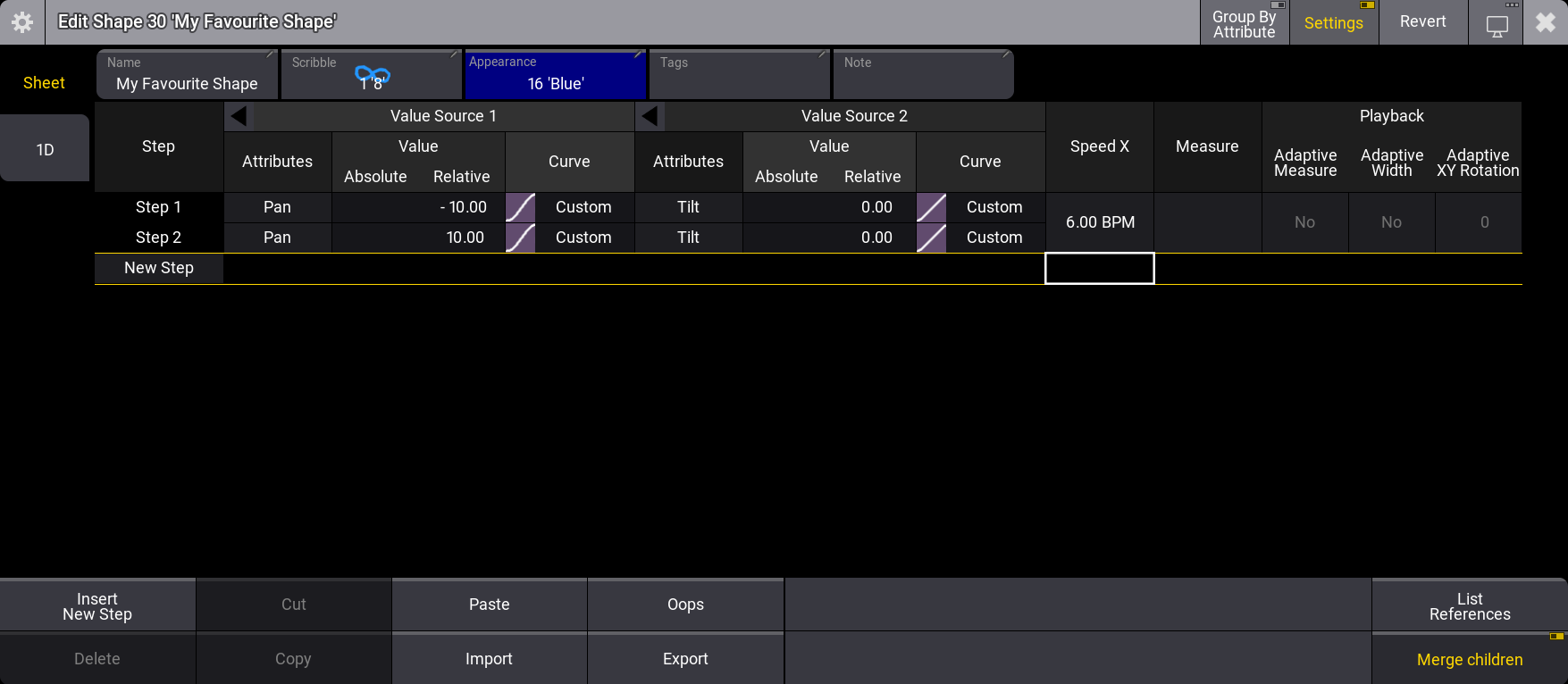
Recipe Editor と同様に、各グリッド行はシェイプ内の1つのステップに対応します。
同じアトリビュートに対応するプロパティは、番号付きの Value Source ヘッダにグループ化されます。ヘッダ左側の矢印( )をタップすると、グループを展開または折りたたみ、アトリビュートの列の表示数を増減できます。デフォルトでは、グループは折りたたまれています。1つのフェイザー・ステップで複数のアトリビュートがアクティブな場合、アトリビュートとそれに対応する値は横に並んで表示されます。
レシピ行をアトリビュートで並べ替えるには、タイトルバーの Group by Attribute を有効にします。グリッドレイアウトが変わります。これにより、1つのレシピ行が1つのアトリビュートに対応します。同じステップに対応するプロパティは、番号付きの Step ヘッダにグループ化されます。
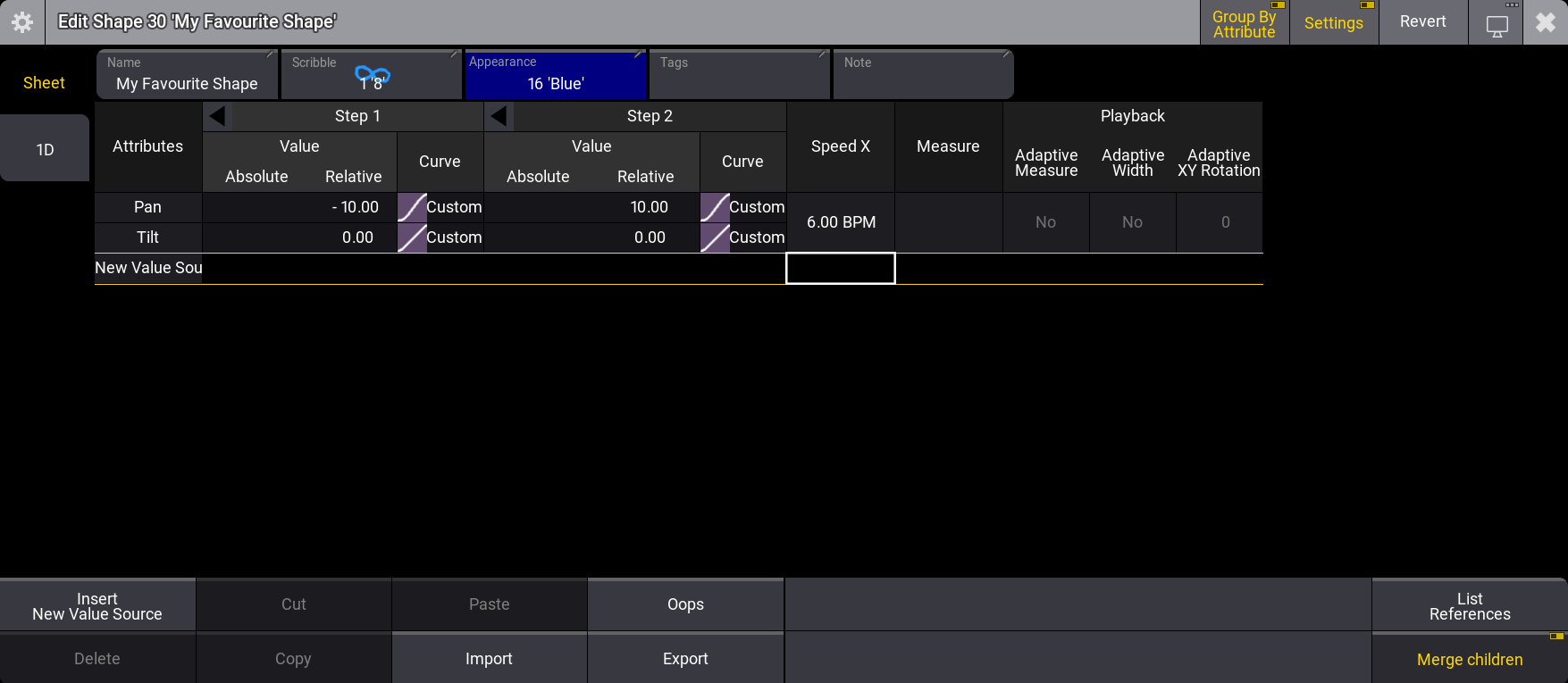
1D タブ
1D タブでは、シェイプ内のアトリビュートの 1D レイアウト と、各ステップの Accel X、Decel X、Trans X、Width
X、Value Absolute、Value Relative に素早く簡単にアクセスできます。
1D レイアウトの青いグリッドには、X軸上の幅が表示され、100%ごとに太い区切り線が表示されます。ステップ番号は各ステップの中央に表示されます。
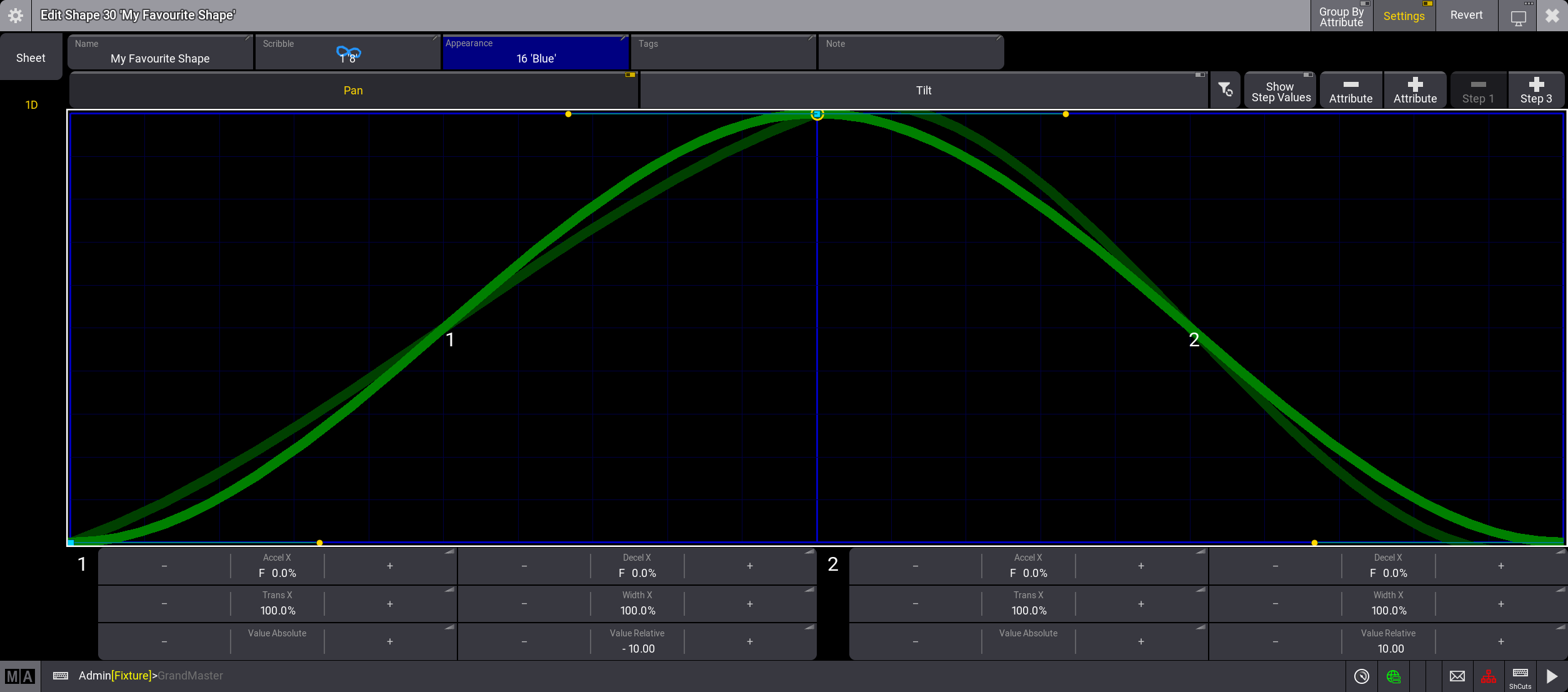
カーブを変更するには、ハンドルを移動するか、ボタン内の値を変更します。 有効なすべてのアトリビュートのカーブがまとめて変更されます。ステップが3つ以上ある場合、選択された2つのステップが灰色で強調表示されます。
アトリビュートは上部にトグルボタンとして表示されます。アトリビュートのシェイプを編集するには、対応するボタンを有効にします。
無効なアトリビュートのカーブを暗い緑色で表示するには、設定で Show All Attributes を有効にします。非表示にするには、Show All Attributes を無効にします。
アトリビュートに加えて、1D レイアウトの上の行には5つのボタンがあります。

すべてのアトリビュートを有効/無効にします。- Show Step Values
このボタンが無効な場合、シェイプの実際の値範囲が 1D レイアウトの高さいっぱいに表示されます。有効な場合、1D レイアウトの高さは使用可能な値の全範囲を表します。  Attribute
選択したアトリビュートをフェイザー・レシピから削除します。 Attribute
シェイプにアトリビュートを追加します。- Step
シェイプの選択したステップを削除します。削除されるステップの番号がボタンに表示されます。 - Step
シェイプにステップを追加します。ステップはフェイザーの末尾に追加されます。
タイトルバーと設定
Shape Editor のタイトルバー右側には4つのボタンがあります。
- Group By Attribute
タップすると、Sheet タブ のグリッド・レイアウトが変わり、行がアトリビュートに対応します。 - Settings
有効にすると、シェイプで Name、Scribble、Appearance、Tags、Note を設定できます。 - Revert
タップすると、シェイプをエディタを開く前の状態に戻します。 
Shape Editor を表示する別の画面を選択します。
Shape Editor の設定にアクセスするには、エディタ右上隅の  をタップします。
Sheet 列の設定は Sheet タブにのみ適用され、1D 列の設定は 1D タブにのみ適用されます。
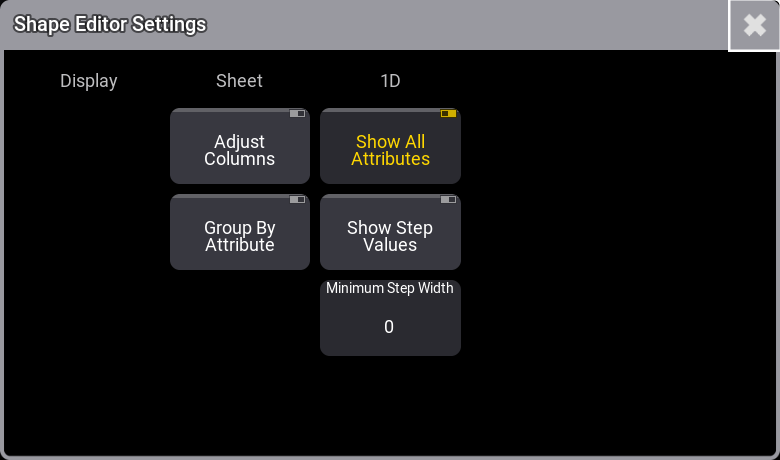
Sheet
- Adjust Columns
このオン/オフボタンでは、Sheet はウィンドウサイズと列数に合わせて列幅を調整します。 - Group By Attribute
タップすると、Sheet タブ のグリッド・レイアウトが変わり、行がアトリビュートに対応します。
1D
- Show All Attributes
無効なアトリビュートのカーブの表示/非表示を切り替えます。Show All Attributes が有効な場合、無効なアトリビュートのカーブは暗緑色で表示されます。 - Show Step Values
このボタンが無効な場合、シェイプの実際の値範囲が 1D レイアウトの高さいっぱいに表示されます。有効な場合、1D レイアウトの高さは使用可能な値の全範囲を表します。 - Minimum Step Width
シェイプ内のステップの最小幅を指定します。